🌼 Spring Sale — Up to 60% discount for hosting and domains
TutorialscPanel

Accessing the database using phpMyAdmin

Learn how to access and manage MySQL or MariaDB databases with phpMyAdmin, an easy-to-use tool. Step-by-step guide available!

Views 800Updated 1 anPublished on 25/09/2018by Florin Petran

Introduction

  • In this tutorial we will show you how to access and manipulate the database or databases using the phpMyAdmin application. PhpMyAdmin is an easy-to-use web tool that allows you to manage MySQL or MariaDB databases directly from your browser.

Requirements

  • Access to the cPanel account.

Steps

  • Log in to your cPanel account using the login details received in the administration email.
  • In the cPanel dashboard, navigate to the Databases section and click on phpMyAdmin.

phpMyAdmin Databases cPanel

  • You will be redirected to the phpMyAdmin interface. On the left side of the screen, you will be able to see the list of databases associated with your hosting account.
  • Select the desired database to access its tables and records. Depending on your needs, you can perform actions such as:
    • View: Examine the data stored in tables.
    • Editing: Modify the records or the structure of the database.
    • Import/Export: Import or export database data in various formats (e.g. SQL, CSV).
    • Creation: Add new tables, columns, or records.
    • Delete: Remove entire tables or databases.
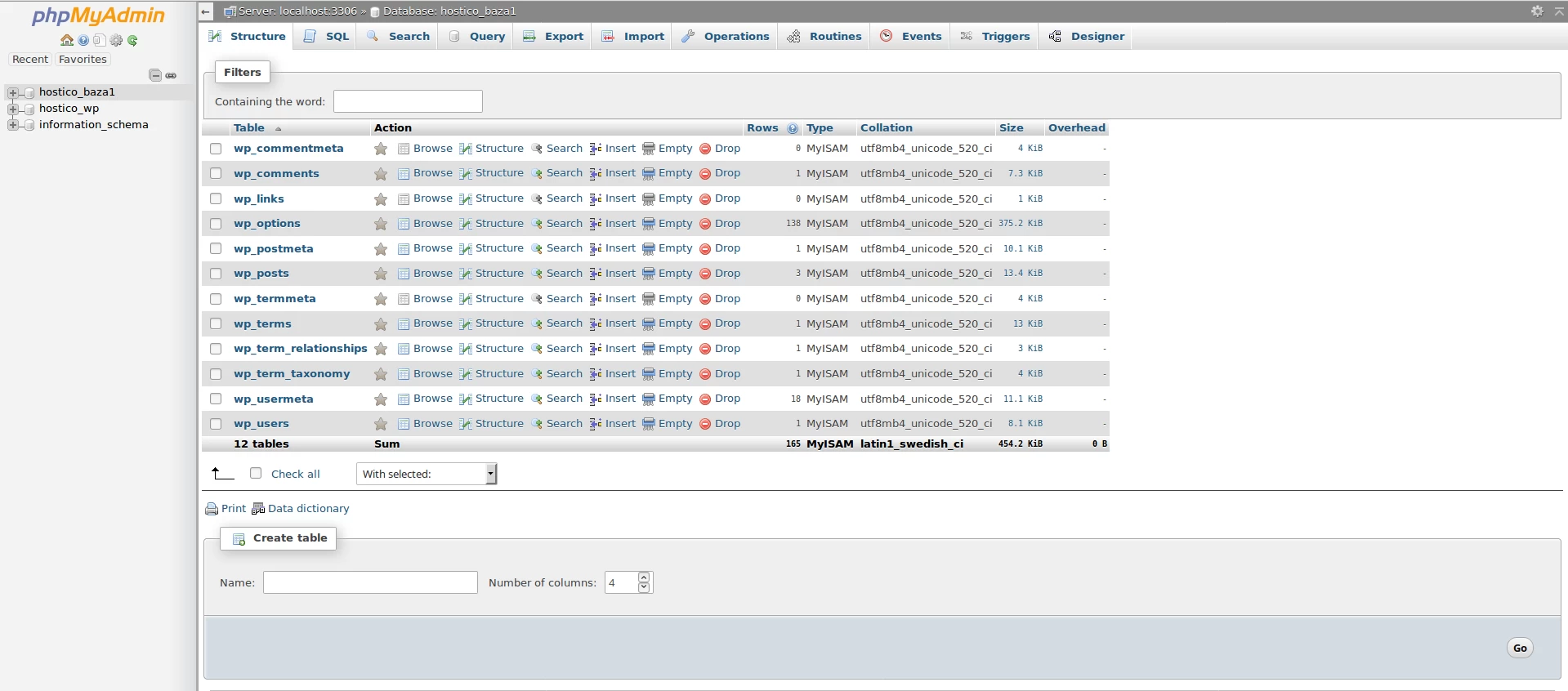
phpMyAdmin și bazele de date

Useful Resources

For more information about the features of phpMyAdmin and how to use it effectively, consult the official documentation: https://www.phpmyadmin.net/docs/.

Similar Articles

DNS settings in the Webuzo panelTutorials /Webuzo

Learn how to edit and set DNS records in the Webuzo panel. Follow the steps to effectively manage domains and subdomains.

48
by Alexandru Rogojan
Views 2313
Updated 10 months ago
Published on 14/09/2017
Changing the PHP version in cPanel on VPS hosting packages via MultiPHP ManagerTutorials /cPanel

In this article, we will present the necessary steps to change the PHP version in a cPanel account using MultiPHP Manager.

46
by Sebastian Szlivka
Views 2536
Updated 1 year ago
Published on 18/10/2017
Clear cache and history in Chrome browserTutorials /Apps

Learn how to delete your history and cache in Google Chrome using the Ctrl+Shift+Delete key combination. The tutorial includes simple steps and applicability in other browsers.

36
by Florin Petran
Views 6272
Updated 5 years ago
Published on 08/01/2018
Creating an email account in cPanelTutorials /cPanel

The cPanel allows for the creation of an unlimited number of email accounts associated with hosted domains. This tutorial will explain the necessary steps to create and access an email account.

27
by Cătălin Adrian
Views 5036
Updated 1 year ago
Published on 28/06/2017
SSH settings in WebuzoTutorials /Webuzo

In this tutorial, learn how to block SSH access on the Webuzo server by enabling the connection and configuring the necessary port.

20
by Alexandru Rogojan
Views 1060
Updated 10 months ago
Published on 12/06/2018