Tutorials • Email
Adding an email account on iPhone or iPad in the Mail app
Learn how to add an email account on iPhone or iPad in the Mail app, with simple steps for configuring IMAP/POP3.
2
Views 2813Updated 2 aniPublished on 10/01/2019by Florin P.
Introduction
- In this tutorial, we will show you how to add an email account in the Mail app on iPhone/iPad.
Requirements
- Email account, password, and email account settings.
Steps
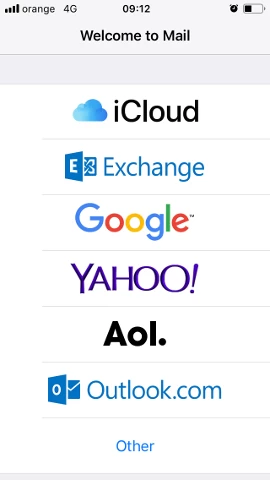
- We open the Mail app on our device and select Other
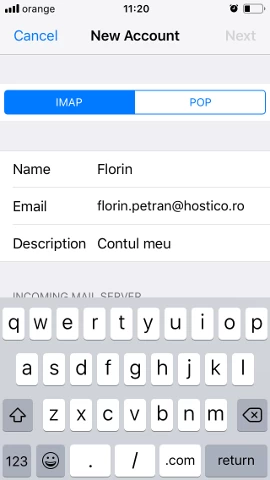
- On the next page, we will select the IMAP/POP3 protocol (in our case IMAP), and then we will add the name, email address, account password, and a brief description.
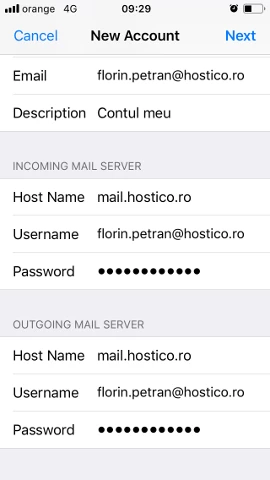
- In the following page we will configure the email server for incoming/outgoing. The email server in our case is mail.hostico.ro, the user is the full address florin.petran@hostico.com and the corresponding account password, and then click Next at the top of the screen.
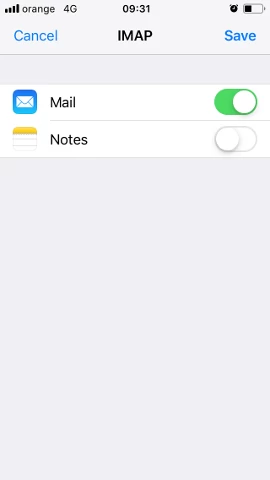
- The server checks the settings, and then we can save the account addition by clicking Save at the top of the screen.