Tutorials • Webuzo
Network Tools in the Webuzo panel
Find out how to use the network tools in the Webuzo panel for Domain Lookup and Trace Route. Step-by-step tutorial for managing domains and subdomains.
4
Views 1244Updated 1 anPublished on 14/09/2017by Alexandru R.
Introduction
- In this tutorial, we present how to use the network tools (Network Tools) from the Webuzo admin panel.
Requirements
- a Webuzo account
Steps
- After logging in to the Webuzo control panel, we will go to the Domain section and click on Network Tools.

- After accessing "Network Tools", the window below will open and we will be able to perform Domain Lookup and Trace Route queries for the domains or subdomains entered in the form.
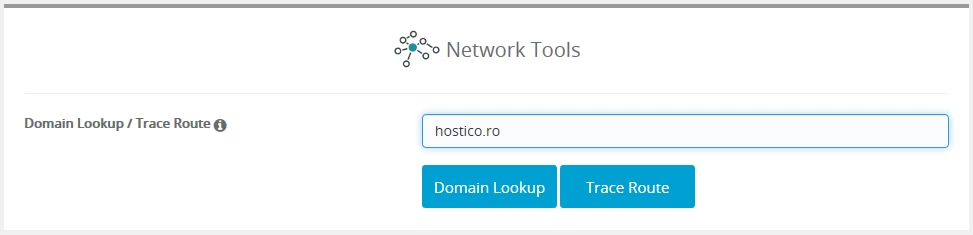
- Using Domain Lookup, general information (server, IP, dns zones, etc.) related to the domain entered in the form above will be displayed.
- Trace Route is a very useful tool, it can check the route from the server to a domain or IP. It will display the entire route from the server to the destination completed in the form above.