Tutorials • cPanel
Configuring Remote MySQL® Access in cPanel
Learn how to configure Remote MySQL® access in cPanel. Follow the simple steps to add the necessary IP address and enable the connection.
Views 1196Updated 2 aniPublished on 26/09/2018by Florin P.
Introduction
- In this tutorial, we will show you how to configure Remote MySQL® access in the cPanel account. Remote MySQL® access is not enabled by default, and you need to send us an email at help@hostico.com for its activation, accompanied by an IP address from which the connection will be made.
Requirements
- Access to the cPanel account, username, password, and the IP address from which the connection to MySQL will be made.
Steps
- After logging into your cPanel account, go to the Databases section, and then click on Remote MySQL®.

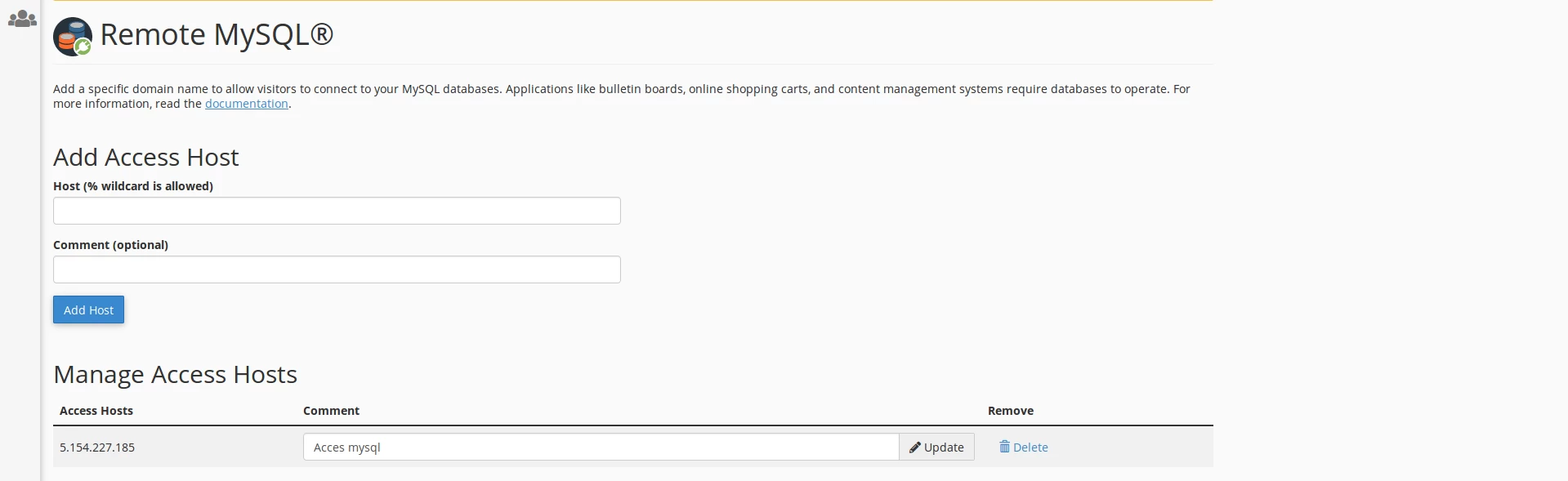
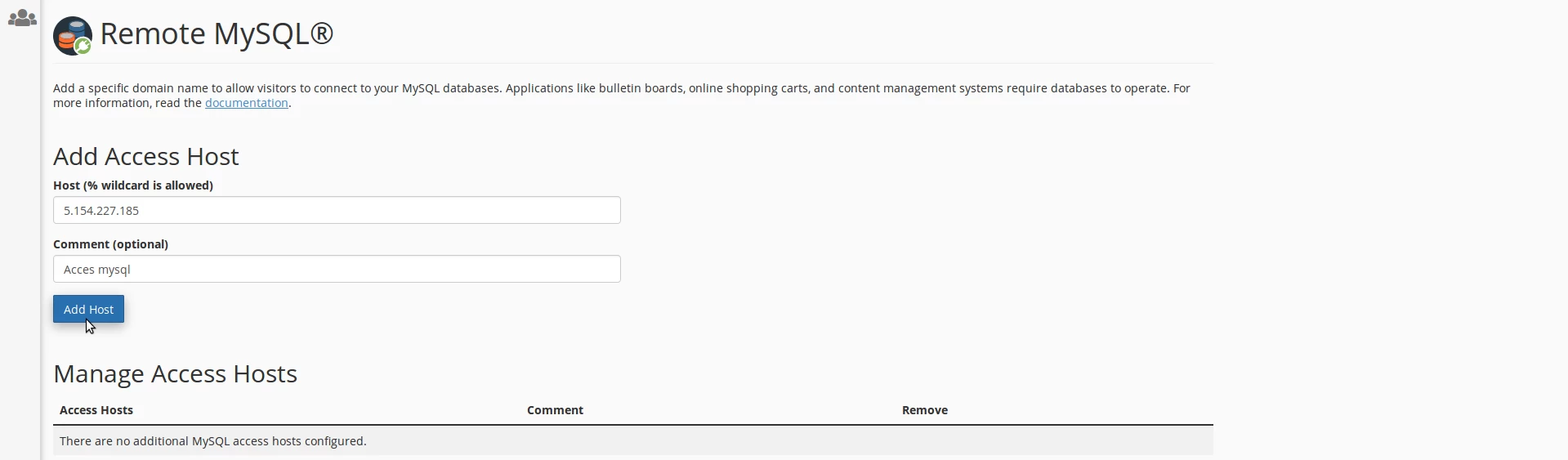
- On the next page, we will add the IP address from which the connection to MySQL will be made, the comment or description is optional, and then click on Add Host to complete the operation.
- The system confirms the addition, and on the page, we can see the added IP addresses.