Tutorials • Softaculous
Restoring a backup created with Softaculous
Learn how to restore a backup of applications installed with Softaculous in cPanel. Follow the simple steps to restore files and the database!
Views 1825Updated 2 aniPublished on 17/11/2017by Sebastian S.
Introduction
- In this tutorial we will present the necessary steps to restore a backup of an application installed using the cPanel Softaculous plugin.
- Softaculous is an auto-installer that simplifies the installation of web applications. It includes numerous CMSs (Content Management Systems), such as: WordPress, Joomla, PrestaShop, phpBB, Magento, WHMCS, etc.
Requirements
For the following steps, we will need the following:
- The login credentials for the cPanel, present in the email with the administration details.
Steps
- First, we will log in to the cPanel control panel.
- Once authenticated, we will go to the Software section and click on the Softaculous Apps Installer button.
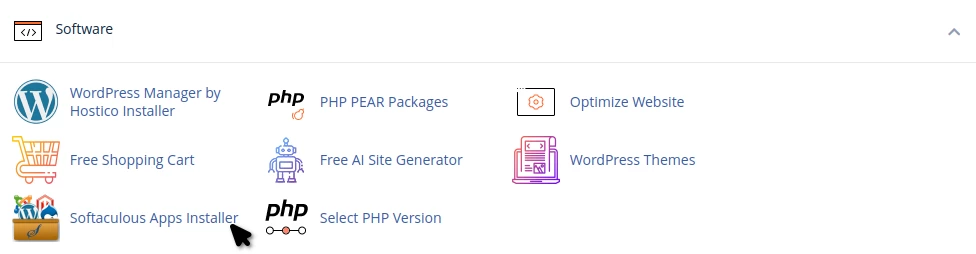
- On the next page, the main interface of the Softaculous auto-installer will be loaded.
- To restore a backup created from a previous date, we will click on Backups.

- In the next window, a list of all available backups will load. These backups are created manually by the user and are saved locally on the hosting.
- We will click on the symbol
 on the right of the application we want to restore from the available backup. In this case, it is a backup of a Wordpress application.

- The next window will contain the fields:
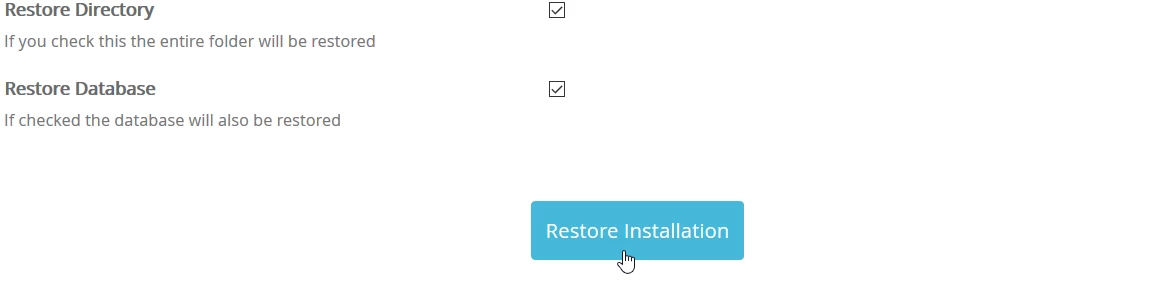
-Restore Directory - if we check the box on the right, all files will be restored.
-Restore Database - if we check the box on the right, the database will be restored.
*If we want the entire site to look and function as it did on the date when the backup was created, we will check both boxes. - Attention: The restore process will delete all existing files and the application's database and replace them with those from the backup archive. If you need any files or the current database, you will need to save them before proceeding with the restore.
- To start the restoration process, we will click the Restore Installation. button.
- Once the process is complete, we will be greeted with a success message, which will confirm that the desired data has been restored from the selected backup.
