Tutorials • ISPConfig
Setting up an Email Forward filter for an email box in the ISPConfig control panel.
This tutorial will present the necessary steps to configure an Email Forward type filter that will forward messages received at a non-existent email inbox to another inbox.
Views 1132Updated 1 anPublished on 29/11/2022by Alexandru J.
Introduction
- The Email Forward functionality allows the automatic forwarding of emails received on a non-existent email inbox on the server to another email address (internal or external).
- For example, you can forward all messages received at utilizator@hostico.net to office@hostico.net, provided that utilizator@hostico.net is not created on the server.
Requirements
- Administration data of the ISPConfig panel received at the email address associated with the Hostico account upon VPS activation.
Steps to follow
- Access the ISPConfig panel using one of the following addresses:
- https://SERVERNAME:10200
- https://IP_SERVER:10200
- https://DOMAIN.XX:10200
- After logging in, click on the Email button in the navigation bar.
- Select the option Add new Email forward.
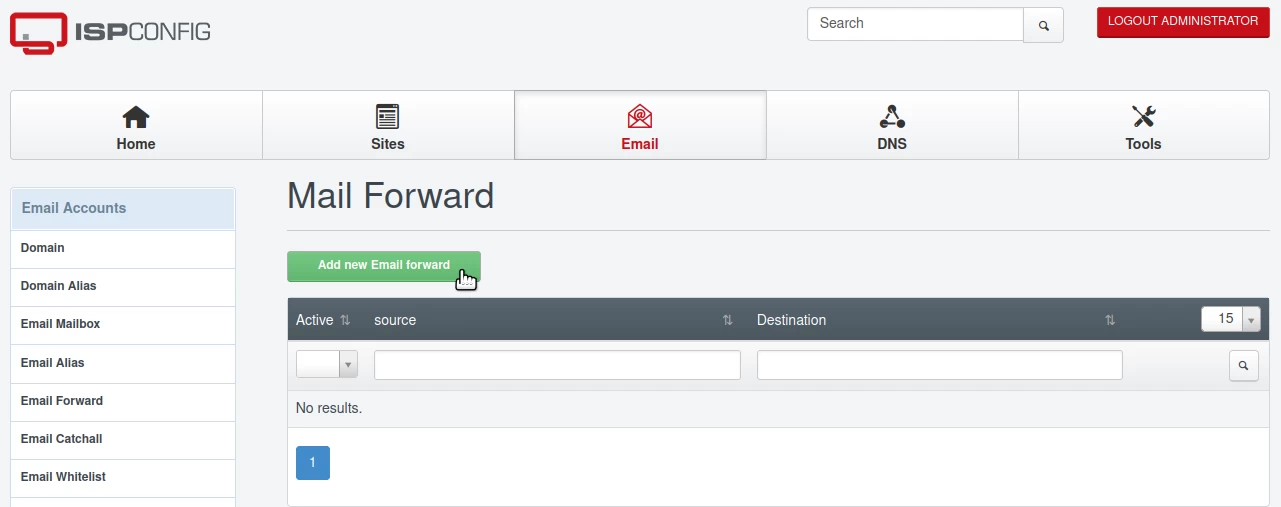
Email Forward Setup
Fill in the fields in the window that appears as follows:
- Email: The email address to which you want to forward messages.
- Destination Email: List of email addresses to which messages will be forwarded, each on a separate line.
- Send as: Leave checked to allow messages to be sent with this setting.
- Enable Greylist: Recommended to be checked to apply the Greylist filter and prevent spam.
- Active: Make sure this option is checked to activate the redirect feature.
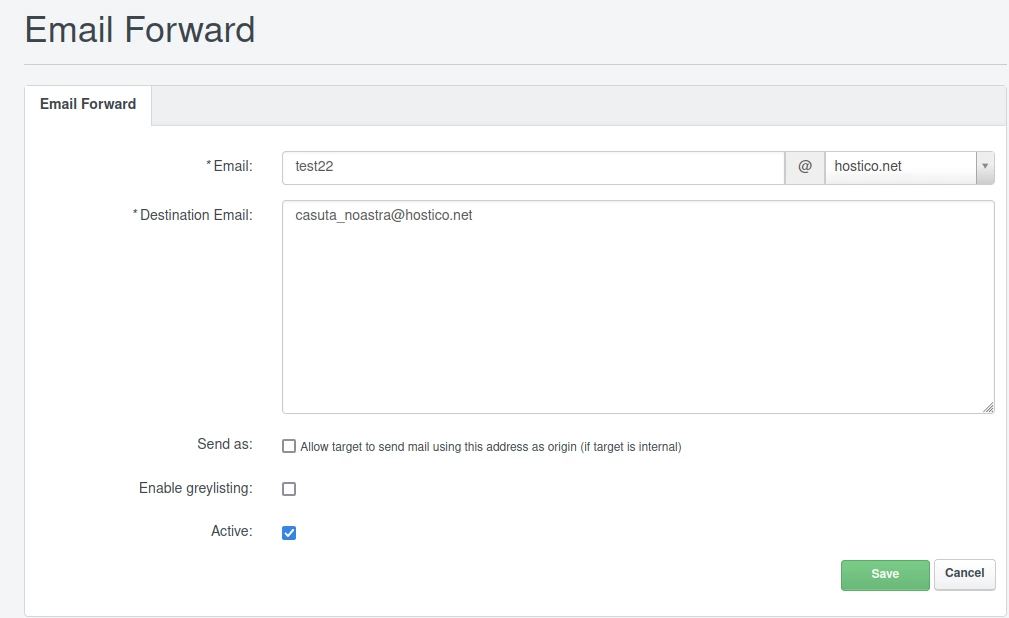
After filling in the fields, click the Save button to save the settings.