Tutorials • WHM
Additional security of the WHM login interface through Two-Factor Authentication
This article will present the steps necessary to add an extra layer of security to logging into WHM using Two-Factor Authentication.
Views 1112Updated 1 anPublished on 01/10/2018by Sebastian S.
Introduction
- Two-Factor Authentication, also known as 2FA, two-step verification or TFA, is an additional layer of security that, in addition to the username and password, requires a validation code for authentication. The additional validation code is usually obtained with the help of an external device. By using a username and password, together with information that only the user knows, it becomes much more difficult for attackers to gain access to personal data or compromise the user's identity.
- Currently, Two-Factor Authentication can be activated for the client account and the cPanel and WHM login pages. Webuzo control panel does not yet offer this functionality.
Requirements
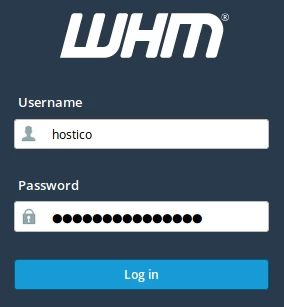
- WHM login details. This information can be found in the email containing the management details of the reseller account or the VPS with cPanel/WHM.
Steps
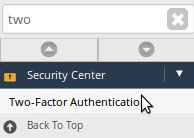
- Log in to the WHM control panel, go to the Security Center section, and click on Two-Factor Authentication. Alternatively, you can search for this option using the search field at the top left.
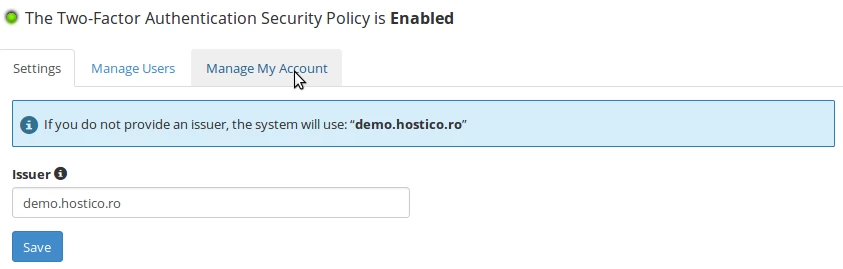
- Click on the Manage My Account tab.
- Click on Set Up Two-Factor Authentication.
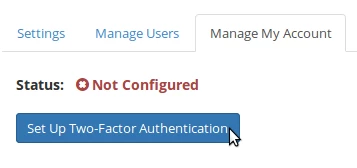
- Use a smartphone along with a security code generation app. We recommend the Google Authenticator app, available for Android™ and iOS®, or Microsoft Authenticator for Windows® Phone:
1. For Android™ - Google Authenticator
2. For Windows® Phone - Microsoft Authenticator
3. For iOS® - Google Authenticator
- After installing the application, link the WHM account with the application by selecting a time-based token.
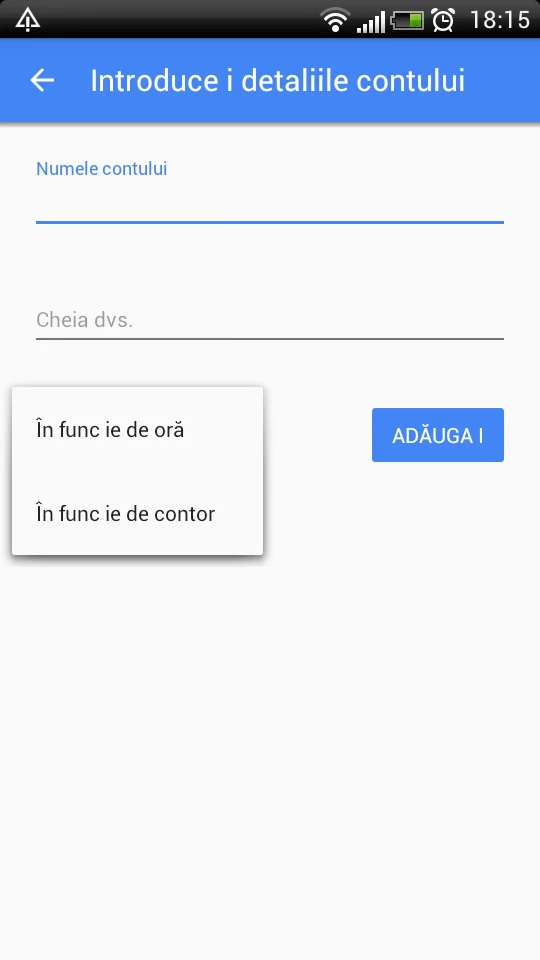
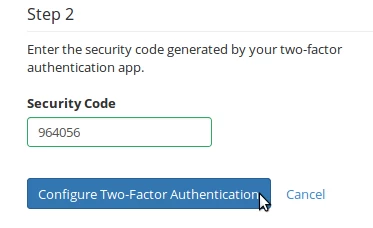
- Enter the secret code in the app either by scanning the QR code or manually. The app will generate a unique code that you need to enter in the Security Code field, then click on Set Up Two-Factor Authentication.
- If everything is configured correctly, you will receive a confirmation message.
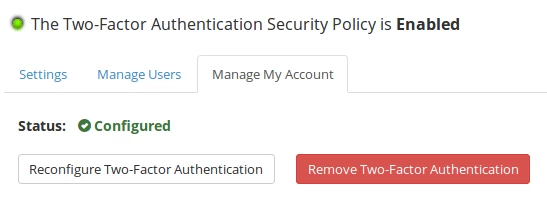
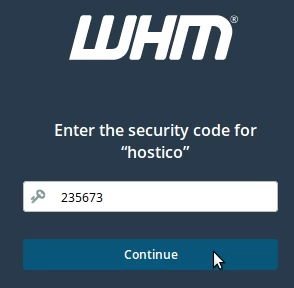
- Two-Factor Authentication is now active for logins in WHM. To test it, access WHM, fill in the authentication fields, then enter the code generated by the app and press Continue.