Tutorials • cPanel
Two Factor Authentication in cPanel
In this tutorial, we will show you how to set up Two Factor Authentication in the cPanel admin panel.
1
Views 1516Updated 2 aniPublished on 11/05/2018by Florin P.
Introduction
- In this tutorial, we will show you how to set up Two Factor Authentication in the cPanel administrative panel.
Requirements
- Access to the cPanel administrative panel.
- The Google Authenticator app that we will need to install on our smartphone or tablet. App available for Android, iOS, and for Windows Phone under the name Authenticator+.
Steps
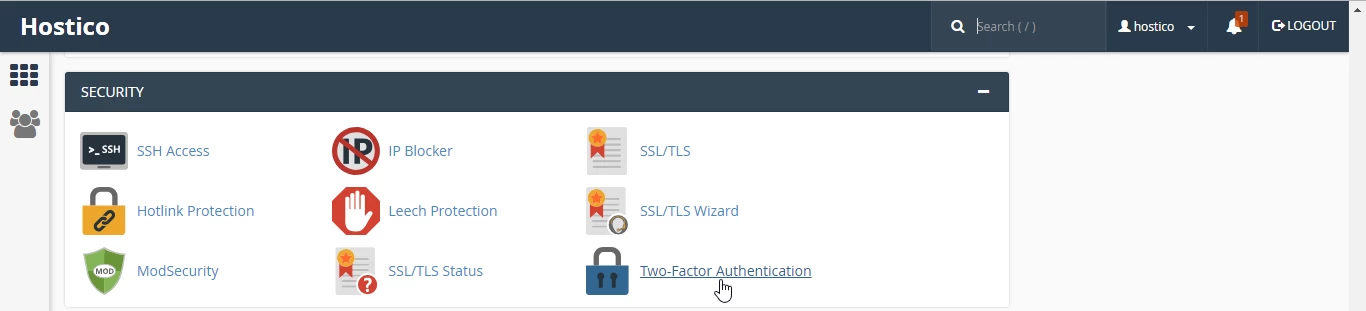
- We log in to the cPanel admin panel, and then we will go to the Security tab and click on Two Factor Authentication.
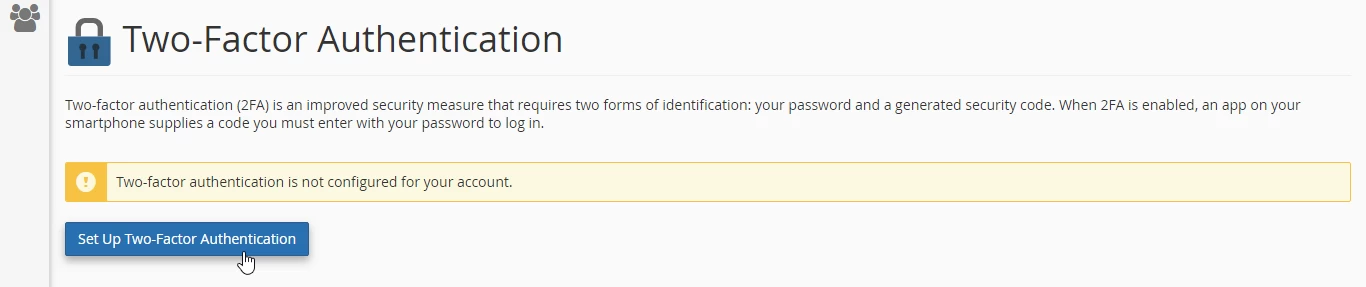
- In the new page that will open, we will be able to configure the Two-Factor Authentication method by clicking on Set Up Two-Factor Authentication.
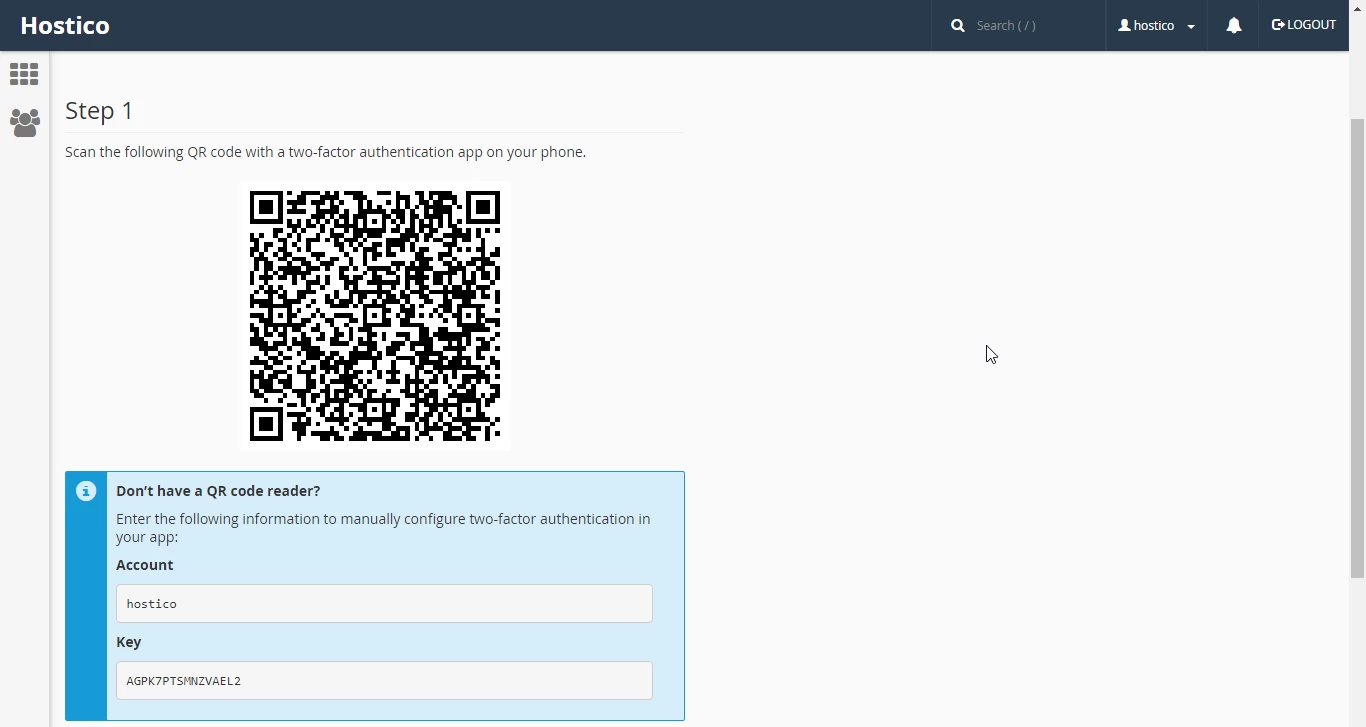
- We open the Google Authenticator app and scan the QR code from the first step or manually enter the data from the Account and Key fields in the Google Authenticator app if we are unable to scan the QR code.
- The next step is to enter the code generated by the Google Authenticator application in the Security Code field.
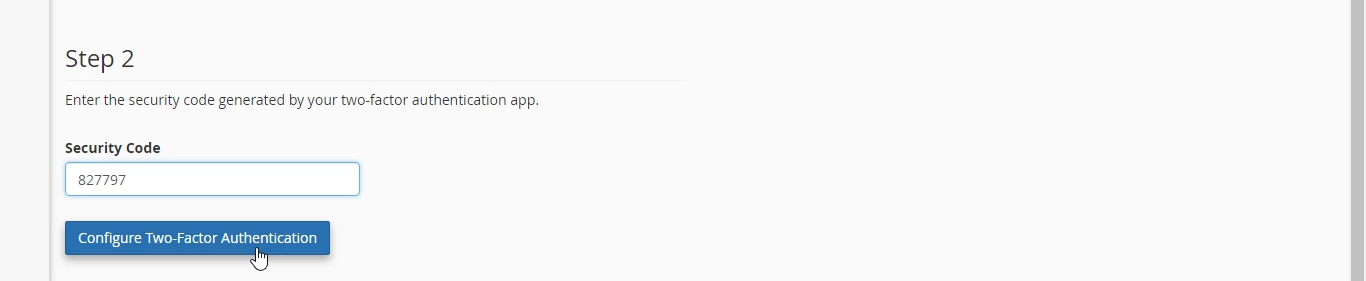
- After entering the code, click on Configure Two-Factor Authentication to complete the setup procedure for the Two-Factor Authentication method.

- From this moment when we log in to the cPanel administration panel after entering the username and password, we will be asked for an additional security code.

- We open the Google Authenticator app to generate the unique code, enter the unique code, and then click on Continue to authenticate ourselves in the cPanel admin panel.
- The codes generated by the application are unique and change every 15 seconds. The application does not require an internet connection to generate the codes.
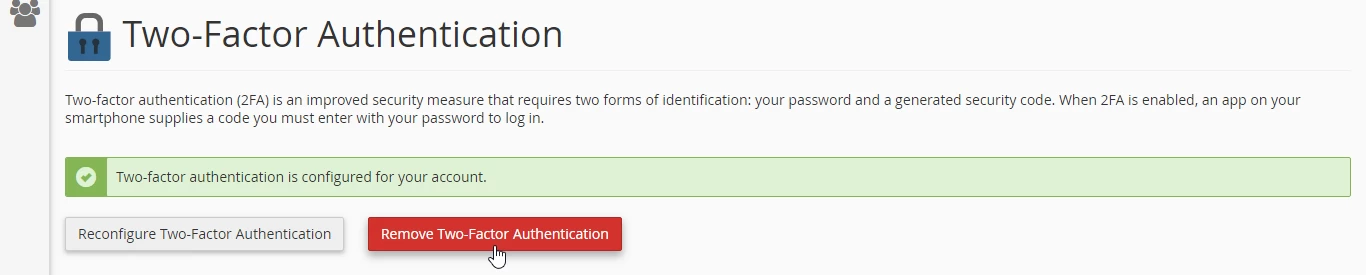
- If we no longer want to use Two-Factor Authentication, we will log into the cPanel administration panel, go to the Security tab, click on Two Factor Authentication, and in the new page that opens, click on Remove Two-Factor Authentication.